
How to Monitor CCTV Cameras Using the HiLook App?
CCTV cameras play a crucial role in maintaining security, and the HiLook app is an excellent tool for managing and monitoring them remotely. Designed for user convenience, the HiLook app brings advanced features and functionalities to your fingertips, enabling you to keep an eye on your premises at any time. This guide will walk you through the process of monitoring CCTV cameras using the HiLook app, focusing on essential details and practical tips.
Why Monitor CCTV Cameras Using the HiLook App?
The HiLook app simplifies surveillance management by offering real-time monitoring, playback options, and instant notifications. Here are a few reasons to consider using it for monitoring your CCTV cameras:
Ease of Use: The app provides an intuitive interface for viewing and controlling your cameras.
Global Accessibility: With internet connectivity, you can monitor your cameras from anywhere in the world.
Advanced Features: Tools like motion detection, zooming, and multi-camera views make monitoring efficient.
Cost-Effective Solution: The app eliminates the need for additional monitoring hardware.
Prerequisites for Monitoring CCTV Cameras with HiLook App
Before you begin, ensure you have the following:
Compatible CCTV Cameras: The app supports IP cameras, DVRs, and NVRs that are HiLook-compatible.
Stable Internet Connection: A strong network connection ensures seamless live streaming and playback.
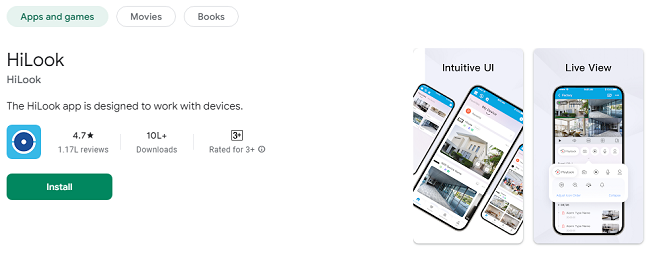
HiLook App Installed: Download the app from the Google Play Store or Apple App Store.
Registered Account: Create an account on the HiLook app to start monitoring.
Steps to Monitor CCTV Cameras Using HiLook App
Step 1: Download and Install the HiLook App
For Android Users:
Open the Google Play Store on your Android device.
Search for “HiLook” in the search bar.
Tap “Install” and wait for the download to complete.
For iOS Users:
Open the App Store on your iPhone or iPad.
Enter “HiLook” in the search field.
Tap “Get” to download and install the app.
Step 2: Register and Log In
Register:
Launch the HiLook app.
Tap “Sign Up” and enter your email address or mobile number.
Create a strong password.
Verify your account via the code sent to your email or phone.
Log In:
Open the app and enter your credentials.
Tap “Log In” to access the main dashboard.
Step 3: Add Your CCTV Cameras to the App
Tap the “+” icon on the home screen.
Select “Scan QR Code” or enter the device’s serial number manually.
Follow the on-screen instructions to pair your camera with the app.
Once added, the camera will appear on your dashboard for monitoring.
Step 4: Real-Time Monitoring
Access Live Feed:
Open the HiLook app and navigate to the home screen.
Select the camera you want to view.
Watch the live feed in full-screen mode or split-screen if you have multiple cameras.
Adjust Camera Views:
Zoom In/Out: Pinch the screen to zoom in or out.
Pan and Tilt: Use on-screen controls if your camera supports pan and tilt functionalities.
Multi-Camera Monitoring:
Switch to multi-camera mode to view feeds from several cameras simultaneously.
Step 5: Playback Recorded Footage
Access Playback:
Navigate to the “Playback” tab in the app.
Select the camera and the date for which you want to view recordings.
Use the Timeline:
Drag the timeline slider to jump to specific moments.
Pause, rewind, or fast-forward as needed.
Export Important Clips:
Save critical footage to your device for later review or sharing.
Step 6: Enable Motion Detection Alerts
Configure Motion Detection:
Go to the camera settings in the app.
Enable the “Motion Detection” feature.
Adjust the sensitivity levels to suit your environment.
Notifications:
Receive instant push notifications when motion is detected.
Tap the notification to view the live feed or playback the recorded motion event.
Step 7: Optimize Settings for Better Monitoring
Video Quality:
Adjust the resolution for clearer footage or to save bandwidth.
Scheduling:
Set recording schedules to prioritize monitoring during specific hours.
Two-Way Audio:
If supported, enable two-way audio to communicate through the camera.
Night Vision:
Ensure night vision is activated for monitoring in low-light conditions.
Troubleshooting Common Issues
Live Feed Not Loading:
Check your internet connection.
Ensure the camera is powered on and connected to the network.
Device Not Found:
Re-scan the QR code or re-enter the serial number.
Verify that the camera is compatible with the HiLook app.
No Motion Detection Notifications:
Confirm that notifications are enabled in both the app and your device settings.
Adjust the motion detection sensitivity if false alarms are frequent.
Playback Issues:
Ensure the selected date and time have recorded footage.
Check your network stability for smoother playback.
Advanced Features for Enhanced Monitoring
Customizable Alerts:
Set specific zones within the camera’s field of view for motion detection.
Cloud Storage Integration:
Back up your recordings to the cloud for added security and easy access.
Remote Control:
Adjust camera angles and settings remotely through the app.
Group Management:
Share access with family members or colleagues for collaborative monitoring.
Best Practices for Effective CCTV Monitoring
Regular Maintenance: Clean camera lenses and check for obstructions.
Secure Network: Use strong passwords and enable encryption to protect your camera feeds.
Update Firmware: Keep your cameras and the HiLook app updated to access the latest features.
Test Alerts: Periodically test motion detection and notification features to ensure reliability.
Optimize Placement: Position cameras strategically to cover high-risk areas effectively.
Conclusion
Monitoring CCTV cameras using the HiLook app is a seamless and efficient way to enhance your security. With features like real-time viewing, motion detection alerts, and easy playback, the app offers comprehensive surveillance control from the palm of your hand. By following this guide, you’ll be well-equipped to monitor your cameras effectively, ensuring peace of mind for your home or business.
Start using the HiLook app today and experience the convenience of modern surveillance technology!
Trending Now
Updates