HiLook App by Hikvision - Download Now!
The HiLook app is a powerful and user-friendly tool designed to seamlessly connect you with your surveillance devices, including Digital Network Recorders (DNRs), Network Video Recorders (NVRs), and IP cameras that support the Cloud P2P function. This app empowers users to monitor their security cameras in real-time, access recorded footage, and receive instant notifications when motion is detected. In this guide, we’ll take you through everything you need to know about downloading, setting up, and maximizing the use of the HiLook app.
Why Choose the HiLook App?
The HiLook app offers unparalleled convenience and security, making it a top choice for individuals and businesses looking for robust surveillance solutions. Here are some key reasons to choose the HiLook app:
User-Friendly Interface: The app’s intuitive design ensures that users of all technical levels can navigate it with ease.
Global Accessibility: Monitor your cameras from anywhere in the world.
Enhanced Security: Instant notifications keep you informed of motion detection alarms, allowing for immediate action.
Comprehensive Playback: Easily access recorded footage to review important events.
Cost-Effective Solution: No need for additional monitoring hardware; your smartphone or tablet suffices.
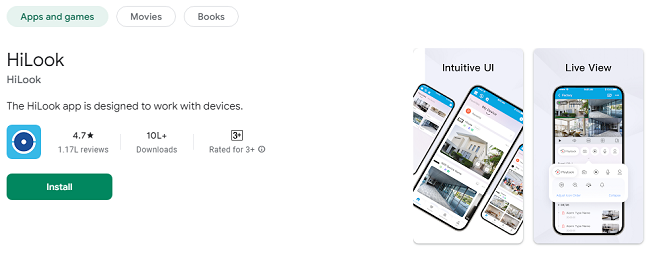
Download HiLook App on Your Android & iOS Device
Getting started with the HiLook app is simple. Follow these steps to download the app on your smartphone or tablet:
For Android Users:
Open the Google Play Store on your Android device.
Search for “HiLook” in the search bar.
Locate the app with the developer listed as “Hikvision.”
Tap “Install” and wait for the app to download.
For iOS Users:
Open the App Store on your iPhone or iPad.
Enter “HiLook” in the search field.
Find the app developed by “Hikvision.”
Tap “Get” and complete the installation process.
For PC Users:
Although primarily designed for mobile devices, you can access HiLook via a web browser by visiting the Cloud P2P portal provided by Hikvision.
Setting Up the HiLook App
Once you’ve downloaded the app, setting it up is quick and straightforward. Follow these steps to get started:
1. Create an Account
To use the HiLook app, you need to create an account:
Open the app and tap “Sign Up.”
Enter your email address or mobile number and create a strong password.
Verify your account via the link or code sent to your email or phone.
2. Log In
After registration, log in using your credentials.
3. Add Your Device
To connect your cameras or recorders to the app:
Tap the “+” icon on the home screen.
Select “Scan QR Code” or manually enter the device’s serial number.
Follow the on-screen instructions to complete the setup.
4. Customize Settings
Name your device for easy identification.
Configure settings like motion detection sensitivity, recording schedules, and notification preferences.
Features of the HiLook App
1. Real-Time Monitoring
The HiLook app allows you to monitor your cameras live:
Open the app and select the camera you want to view.
Switch between single or multi-camera views.
Zoom in or pan for detailed surveillance.
2. Video Playback
Access recorded footage effortlessly:
Navigate to the “Playback” section.
Select the desired date and time to view the recording.
Use the timeline feature to pinpoint specific events.
3. Motion Detection Alarm Notifications
Stay alert with real-time motion detection:
Enable notifications in the settings menu.
Receive instant alerts on your device when motion is detected.
Review the detected motion event directly from the notification.
Tips for Optimizing the HiLook App Experience
To get the most out of the HiLook app, consider these tips:
1. Ensure a Stable Internet Connection
A reliable internet connection is crucial for uninterrupted live streaming and smooth video playback.
2. Regularly Update the App
Keep your app updated to access the latest features and security patches.
3. Use Secure Passwords
Protect your account by using strong, unique passwords and enabling two-factor authentication (2FA).
4. Adjust Motion Detection Settings
Customize sensitivity levels to minimize false alarms caused by pets or environmental factors.
5. Backup Important Footage
Export critical video clips to a secure location to ensure they’re always accessible.
Troubleshooting Common Issues
If you encounter problems while using the HiLook app, here are some solutions:
1. Login Issues
Ensure your credentials are correct.
Reset your password if necessary.
2. Device Not Connecting
Verify that your device is powered on and connected to the internet.
Check the serial number and ensure it’s entered correctly.
3. No Notifications
Confirm that notifications are enabled both in the app and on your device settings.
Check motion detection settings and sensitivity levels.
4. Video Playback Problems
Ensure your internet connection is stable.
Confirm that the footage exists for the selected date and time.
Frequently Asked Questions (FAQs)
Q1: Is the HiLook app free?
Yes, the HiLook app is free to download and use. However, additional storage or features may require in-app purchases.
Q2: Can I access the HiLook app on multiple devices?
Absolutely! Log in to your account on multiple devices to access your cameras from anywhere.
Q3: What types of devices are compatible with the HiLook app?
The app works with DNRs, NVRs, and IP cameras that support Cloud P2P.
Q4: How many cameras can I connect to the HiLook app?
The number of cameras you can connect depends on your device’s capacity and network bandwidth.
Conclusion
The HiLook app is a comprehensive surveillance solution that brings convenience, security, and peace of mind to its users. From real-time monitoring to motion detection notifications, the app offers a suite of features designed to enhance your safety and accessibility. By following this guide, you’ll be well-equipped to download, set up, and optimize your HiLook app experience, ensuring seamless surveillance at your fingertips.
Whether you’re securing your home or business, the HiLook app makes monitoring and managing your cameras effortless. Download the app today and take the first step toward smarter surveillance!
Trending Now
Updates